
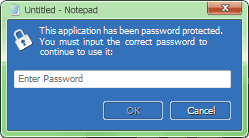
Password Door adds password protection feature to any program. You set a password for each protected program, anyone who tries to launch any of the protected programs, will be asked for the password in a popup password dialog box. Password Door will terminate the program if the user can not provide the correct password.
Password Door also supports other protection modes such as "Allow", "Deny" etc. A denied program will refuse to be launched; the protection mode "Allow" is useful when using multiple protection items for a single program.
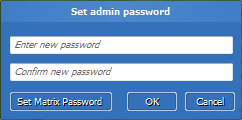
The admin password is very important, not only can it protect the main program of Password Door to prevent unwanted users from changing the settings you have made, but it can also protect the uninstaller so that none can uninstall the software without the admin password. The admin password also is a master password that can be used to allow any protected program.
Password Door will prompt you to specify the admin password during installation. You can change the admin password at any time by clicking Change Admin Password... on the main window of Password Door.
It's so easy to protect a program: You just double-click at any item in the Installed Programs list to protect it. Password Door provides multiple methods for you to protect any program on your computer.
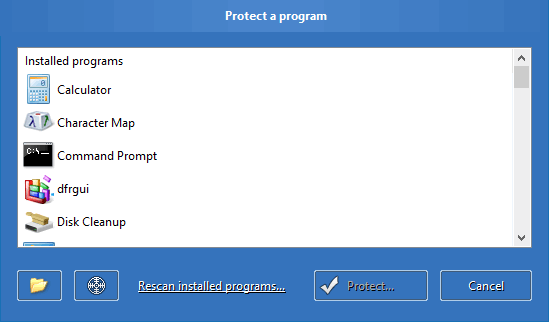
 button to browse your computer and select any program to have it protected.
 icon to the main window of any program to get the program protected.
Do not forget to click OK to confirm, so that the protection item will be saved to the current configuration and will take effect.
You can set an individual password for each protected program, by clicking the Change... button in the Protection item page. If you do not set password for a program, then the admin password will be used for this protection item.
You can disable the protection for any program you have protected. First click View & Modify Protected Programs on the main window of Password Door, then select the program in the Protection Manager page, click Disable. The protection will be disabled until you choose the same program and click Enable to enable it again.
Clicking Deactivate Protection in the main window will disable the protection for all programs. You can click Activate Protection to enable the protection again. Note that the protection will be automatically enabled after computer rebooted.
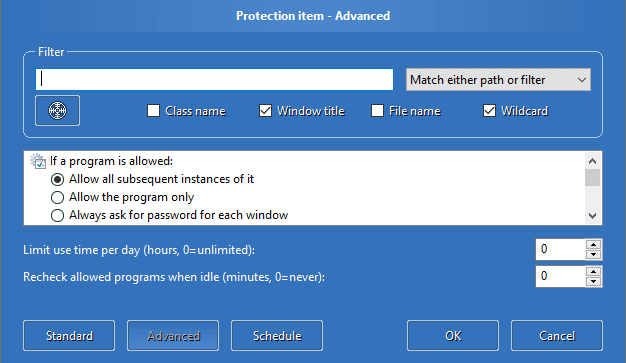
Password Door provides advanced features to help you protect some programs that cannot be protected with the normal method.
The Enable EXE Identity by default will be selected. Password Door can protect most programs by using that feature. You don't need, and it's not recommended, to disable that option.
You can use the Filter to protect any program or even a set of programs.
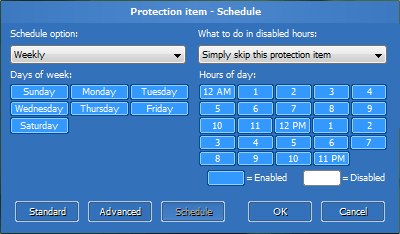
Schedule features can be used to protect any program daily, weekly, monthly or at any time you specified.
You can let Password Door use internet time for schedule options. Once you enabled the internet time feature, Password Door will use the internet time for schedule options, so that users can not bypass the protection by changing the system time.