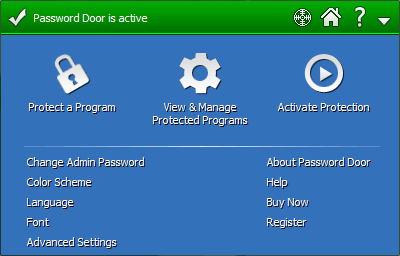
The main program of Password Door, is a control program for you to manage the password protection, change admin password and other settings.
The following sections introduce the user interface of the Password Door main program. Please click the following links to access topics.
When you click this button, the Protect a Program page shows, Password Door lists all the installed programs on your computer in the list box.
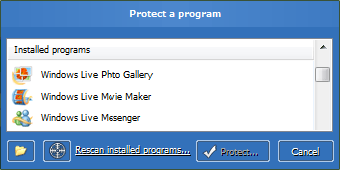
 Password Door built the installed programs list during installation.
You can click Rescan installed programs to let it search for installed programs again,
if new programs have been installed and were not listed here.
Password Door built the installed programs list during installation.
You can click Rescan installed programs to let it search for installed programs again,
if new programs have been installed and were not listed here.
 to choose a program to protect it directly.
You also can drag a program file (.exe) or a shortcut to program file,
to the main window of Password Door to protect it.
 to protect a program.
You drag and drop the icon to the main window of any program you want to protect, Password Door
automatically captures the program, you only need to confirm the protection.
to protect a program.
You drag and drop the icon to the main window of any program you want to protect, Password Door
automatically captures the program, you only need to confirm the protection.See also Various Ways to Protect Programs.
You need to confirm the protection in the next page once you protected a program with one of the methods above. Only after you confirmed the protection (by clicking OK) the protection item then is saved and will take effect.
The installed programs list supports context menu and hotkeys. Right-clicking in the list box shows the popup menu with additional functions; the normal hotkeys such as Ctrl+F, Del can be used in the list box.
The Protection manager page will show when you click this button.
All protected programs are listed in this page, those items are called protection items.
You can manage those protection items, or add new protection items:

Clicking this button is same to clicking the Protect a Program in the home page, it allows you to protect a new program, in other words, add a new protection item to the list.
Choose one or multiple items in the list, and then click this button to remove the selected items.
Removing a protection item will remove the protection from the related program, unless there are multiple protection items that will protect the same program after you removed this protection item.
You are allowed to modify the settings of an existing protection item by clicking this button. First choose an item in the list, then click this button to modify the settings of the selected item.
A protection item has many settings in 3 pages, you normally only need to use the settings in standard page. For more information about the settings of protection item, see Protecting Programs.
A protection item can be temporarily disabled instead of being removed, so that you can reuse it later. Select a protection item, then click Disable to disable the item temporarily.
If you selected a disabled protection item, the button becomes "Enable" and you click it will re-enable that item. After you clicked the button, you must choose a protection mode in the popup menu.
Disabling a protection item actually is to change its
protection mode to be <Disabled>.
If advanced and/or schedule options are used in protection items, a single program can be affected by more than one protection item.
The order of the protection items is important, Password Door always check the topmost protection item first, and then next and so on. If it found a matched item for a program, it stops checking the rest items and uses the settings in the found item directly.
Consider this: protection item A) denies a program 8:00 AM to 6:00 PM, while protection item B) allows the same program all other hours.
So changing the order of the protection items can cause the protection being changed. And this is also why the newly added protection items are always on top of existing items: to make sure the new protection items always take affect.
The two buttons can be used to change the order of the protection items in the list. First select one or multiple items, then click one of the buttons to move the item(s) up or down.
See also Using Multiple Protection Items.
Items can be copied or cut to clipboard and paste back to the list. Right-click on any item, then choose the menu item Copy, Cut or Paste.
You can find a protection item in the list: right-click in the list box, then choose menu item Find...
The list box supports context menu and normal hotkeys. Right-click in the list box and a popup menu will be displayed.
This button is a switch to deactivate the whole protection with one click, or activate the protection if the protection has been deactivated before.
Deactivating the whole protection will not remove the protection settings, it only stops all the protection and you can activate the protection by clicking this button again. Once you activated it, all protection then is back again.
Protection is automatically activated after computer
rebooted even if you have deactivated it.
What is admin password and why is it so important?
Users can not use the main program without the admin password. If there is no admin password, anyone can use the main program of Password Door to modify the settings, remove the protection.
You can always use the admin password to allow a password protected program. A separate password can be set for each of the protected programs, but admin password always is accepted by all protected programs.
The uninstaller needs the admin password to uninstall Password Door. Users are not allowed to uninstall the software without admin password.
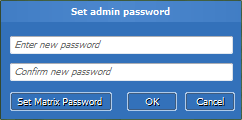
During installation, the Setup asked you to specify the admin password for Password Door. If you didn't set that password or if you want to change the admin password, you can click Change Admin Password to change it.
The matrix password is a new type of password supported by Password Door, any password can be a normal password or a matrix password.
You can change the color scheme by clicking Color Scheme, a new page will be shown to let you select color scheme.
There are predefined color schemes in the page, and you can click the button Custom to select a custom color too.
Color scheme applies to the main program and all other components (password dialog boxes, notification windows etc.).
Click the button Font to specify the font for Password Door. The font applies to all components of Password Door.
Password Door supports multiple languages, you can customize your own language file, and activate it in the page Language.
See Language Files for more information.
Help Index | © TopLang software